Splunk Tutorial for Beginners: SIEM, Components & Search
Learn what Splunk does, how forwarders, indexers and search heads work together, and how to navigate the Splunk interface. This beginner-friendly guide introduces the foundations of using Splunk for log analysis, monitoring and security investigations.
Learning objective: By the end of this guide, you should be able to explain Splunk’s core components, identify common log sources, and understand where searches are created and results are viewed.
What Is Splunk?
Splunk is a platform that collects, indexes, searches and analyzes machine-generated data, including logs from servers, endpoints, applications and network devices. Security teams commonly use Splunk Enterprise Security or other Splunk capabilities as part of a Security Information and Event Management (SIEM) workflow.
In a security operations centre (SOC), analysts can use Splunk to investigate events, look for suspicious activity, correlate information from multiple sources, and build dashboards or alerts. It can also support operational troubleshooting and application monitoring.
Think of logs as records of what systems and applications have been doing. Splunk helps turn large volumes of these records into searchable information that people can investigate.
How Does Splunk Work?
In a common distributed deployment, data flows through three main roles: a forwarder collects and sends data, an indexer processes and stores it, and a search head provides the interface for searching and analyzing the indexed data.
The search head sends search requests to the relevant indexers and displays the results.
This is a simplified overview. Smaller installations can combine roles on one server, while larger environments may use multiple indexers and search heads for capacity and resilience.
The Three Main Components of Splunk
The three core roles introduced in this tutorial are the forwarder, indexer and search head. Each has a different responsibility in the data pipeline.
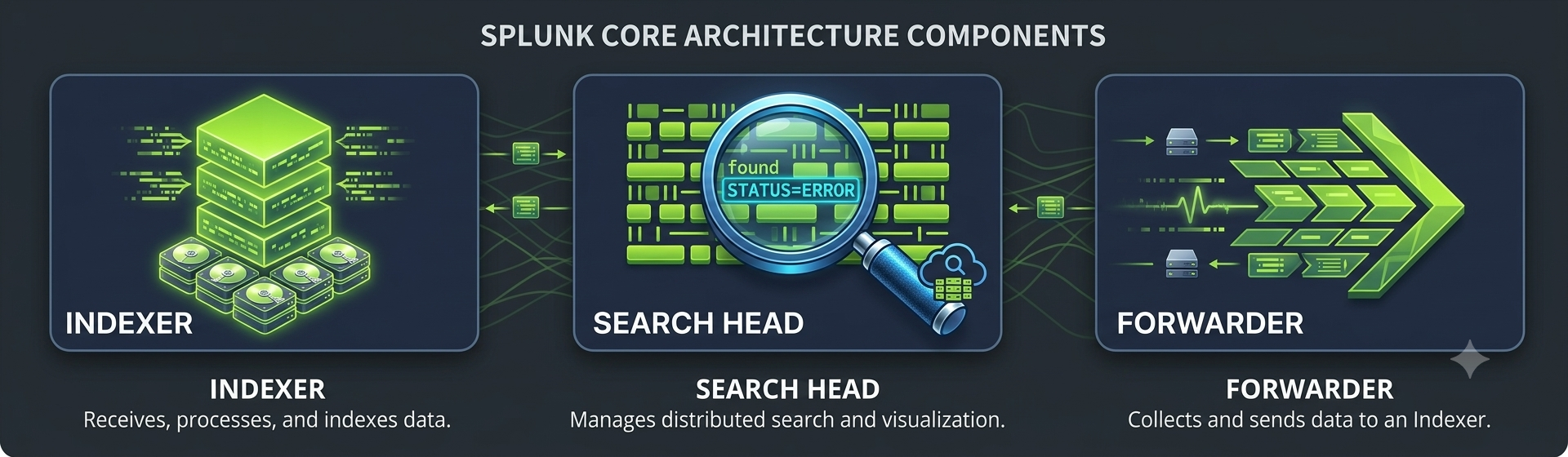
| Component | Main responsibility | Simple way to remember it |
|---|---|---|
| Forwarder | Collects and sends data from configured sources. | Collect and deliver |
| Indexer | Processes incoming data and stores searchable events. | Process and store |
| Search head | Runs searches and presents results to the user. | Search and analyze |
1. Splunk Forwarder
A Splunk forwarder is software that collects data from configured sources and forwards it to a Splunk receiving component, commonly an indexer. The Universal Forwarder is a lightweight option designed to collect and forward data while using relatively few system resources. Actual resource use depends on the host, inputs and workload.
Common data sources
- Windows servers: application and service logs, web server logs, and other configured machine data.
- Windows endpoints: Windows Event Logs, PowerShell logs and Sysmon events when those sources are enabled and configured.
- Linux hosts: system logs, authentication records, service logs and other configured host activity.
- Databases and applications: connection events, errors, audit records and application logs, depending on how data collection is configured.
Forwarders do not automatically collect every possible log. An administrator must configure the relevant inputs and ensure the required data is available and permitted to be collected.
The key point is that the forwarder focuses on collecting and transporting data; searching and analysis usually happen later in the Splunk workflow.
2. Splunk Indexer
The indexer receives incoming data, processes it, and stores it so that it can be searched efficiently. During ingestion, Splunk identifies event boundaries and extracts or makes fields available according to the data format, configuration and search-time processing.
A Splunk event is an individual record of activity, such as a login attempt, a service error or a firewall connection. Events often contain timestamps and fields that help analysts filter and interpret the information.
What does the indexer do?
- Receives data: accepts data sent from forwarders or other configured inputs.
- Processes events: parses incoming data and applies relevant ingestion-time processing.
- Stores data: organizes and stores events in indexes for retrieval.
- Supports searches: returns matching events and relevant data when search requests are run.
Field extraction can happen at different stages depending on the field and configuration. It is therefore more accurate to think of indexing as preparing and storing data for search, rather than assuming every field is always permanently normalized at ingestion.
3. Splunk Search Head
The search head provides the user-facing environment for searching and analyzing indexed data. In a typical workflow, a user opens the Search & Reporting app, enters a query written in Search Processing Language (SPL), and runs the search.
For distributed searches, the search head coordinates the request with relevant indexers. Matching events and results are returned so the analyst can review, filter, transform and visualize the information.
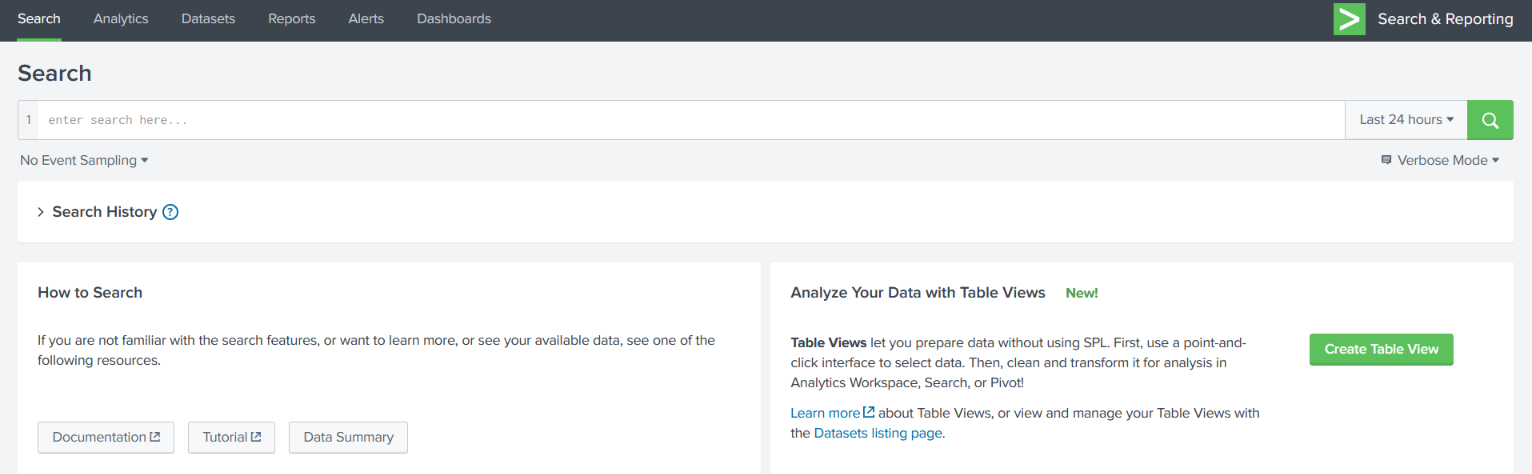
What can you do from the search interface?
- Search indexed events using SPL.
- Filter results by fields, time ranges and search conditions.
- Transform events into tables and statistical summaries.
- Create visualizations and dashboards from search results.
- Investigate activity across multiple data sources.
In short, the forwarder moves data, the indexer stores it for retrieval, and the search head helps users investigate it.
Navigating the Splunk Interface
When you first sign in to a Splunk instance, the home screen provides entry points to installed apps and common areas of the product. The exact appearance can vary with Splunk version, permissions, installed apps and customizations.
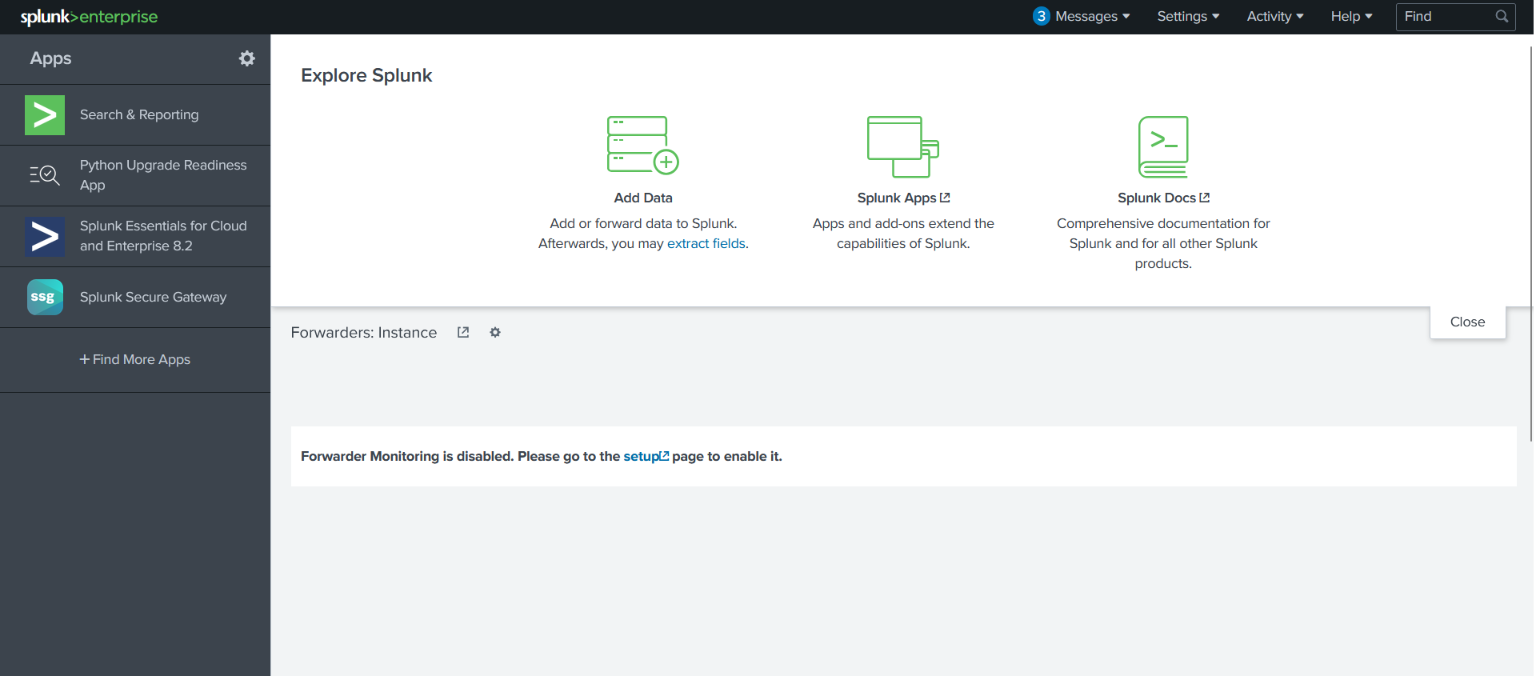
Two useful areas to recognize early are the global Splunk bar and the Apps panel. They help you navigate the instance and open the tools available to your account.
Understanding the Splunk Bar
The Splunk bar contains navigation and utility controls. Labels and available options can differ slightly between versions and user roles. Common controls include:
- Messages: displays system messages or notifications when available.
- Settings: provides access to configuration areas that your account is permitted to use.
- Activity: helps you review search activity and job status, depending on the interface version.
- Help: provides access to help resources and documentation.
- Find: can help locate apps or other items within the Splunk interface, depending on the version.
If an option is missing, it may be due to your Splunk version, interface layout or account permissions rather than an installation problem.
Understanding the Splunk Apps Panel
The Apps panel lists apps available on that Splunk instance. Apps add purpose-specific pages, workflows, dashboards and features. What you see depends on which apps have been installed and which ones your account can access.
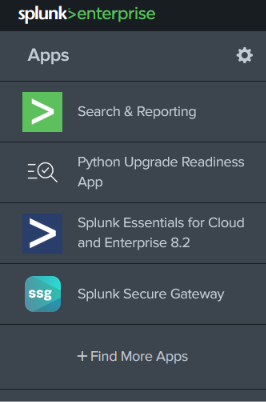
Search & Reporting
Search & Reporting is a commonly available app for running SPL searches, examining events and building tables, charts and other visualizations. It is a useful starting point when learning how to query machine data.
Other apps may provide security analytics, technology-specific dashboards or custom workflows. Their availability is determined by the deployment and its configuration.
Introduction to SPL (Search Processing Language)
SPL stands for Search Processing Language. It is Splunk's search language for finding events and then filtering, transforming, summarizing or visualizing the results. SPL commands are commonly connected using the pipe character (|), which passes results from one command to the next.
A simple example
The following is an illustrative search for events from a source type named WinEventLog:Security. Your available source type names may differ depending on your data inputs and configuration.
This example searches the main index for the specified source type and limits the displayed results to the first ten matching events. If your data is stored in a different index or uses a different source type, adjust the search accordingly.
Example: Count events by source type
This query counts events for each source type in the selected index and sorts the counts from highest to lowest. It is a useful way to explore what kinds of data are available to search.
How Splunk Is Used in Security Operations
Security analysts can use Splunk to bring together logs from different systems and investigate activity that may otherwise be difficult to understand in isolation.
- Authentication investigations: review successful and failed login activity.
- Endpoint monitoring: search configured Windows, PowerShell or Sysmon events.
- Network investigations: analyze available firewall, proxy, DNS or other network logs.
- Event correlation: compare activity across data sources using shared fields and time ranges.
- Dashboards and alerts: present useful patterns and help teams monitor defined conditions.
Splunk can only analyze the data it receives and is configured to process. Effective monitoring depends on collecting relevant logs, maintaining useful timestamps and fields, writing appropriate searches, and validating alerts to reduce missed detections and false positives.
Forwarder vs. Indexer vs. Search Head
| Role | Input | Output / purpose |
|---|---|---|
| Forwarder | Logs and machine data from configured sources | Sends data to a receiving Splunk component |
| Indexer | Incoming data | Processes and stores searchable events |
| Search head | User search requests and SPL queries | Coordinates searches and presents results |
Remember the sequence: collect → index → search. These roles form a useful mental model for understanding how Splunk turns raw machine data into information an analyst can investigate.
Frequently Asked Questions
What is Splunk used for?
Splunk is used to collect, search, monitor and analyze machine-generated data. Security teams can use it for log investigations, event correlation, dashboards and SIEM workflows.
What are the three main Splunk components?
The three core roles covered here are the forwarder, indexer and search head. They collect and send data, process and store events, and enable searching and analysis, respectively.
Does Splunk automatically collect all Windows logs?
No. The relevant inputs, permissions and configurations must be set up to collect the required Windows Event Logs, PowerShell logs, Sysmon events or other sources.
What is SPL in Splunk?
SPL means Search Processing Language. It is used to search indexed data, filter events, calculate statistics and prepare results for tables or visualizations.
What is the Search & Reporting app?
It is a common Splunk app used to write and run searches, inspect events, and present results as tables, charts and other visualizations.
Can Splunk be used as a SIEM?
Yes. Splunk capabilities, including Splunk Enterprise Security, can support SIEM use cases such as security monitoring, investigation and event correlation. The exact capabilities depend on the products and configuration in use.
Conclusion
Splunk helps teams make machine-generated data searchable and useful. Start by understanding the three core roles: forwarders collect and send logs, indexers process and store events, and search heads let analysts search and analyze those events. Then explore the Splunk interface and practice basic SPL queries against data you are authorized to access.